
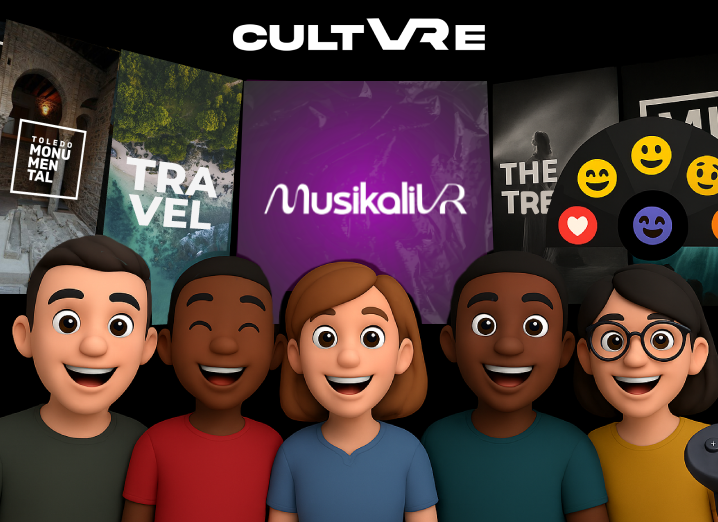
1. Add user(s) to create a Watch Party
First, you need to add the users you want to include in the Watch Party. Keep in mind that there can be a maximum of 5 participants (4 users + the Watch Party creator).
To do this, open the “People” tab from the Quest menu. (Photo below).
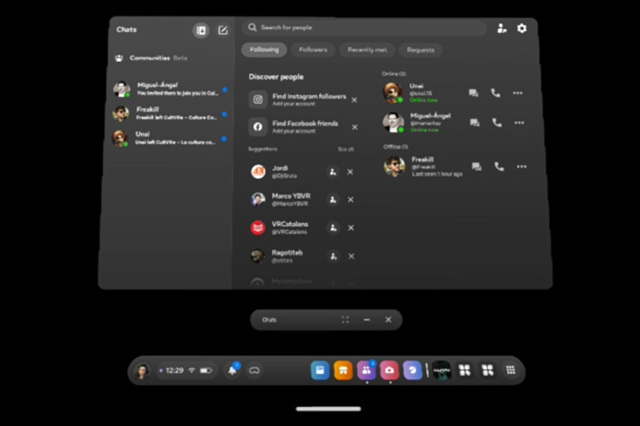
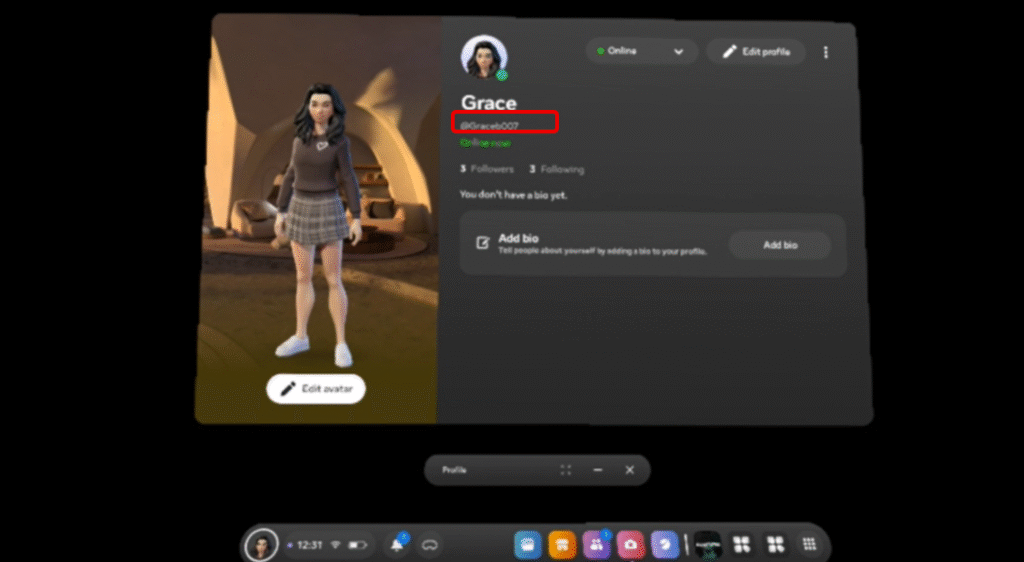
Once inside, look for the user of the person with whom you’d like to host the Watch Party. You must enter their Meta account nickname, which starts with @. You can find the username in the profile tab, below your name.
Once you’ve found them, press the button on the left that appears next to the user to add them. This way, you can add them as a friend.
After doing so, you can now open the app.
The invitation to enter the Watch Party will appear in the chat. Each invitation will be visible during a period of time. if it doesnt work, try to send a new invitation.
2. Creating a Watch Party at CultVRe
Once all the users are added as friends in the Meta Quest app, you will now open CultVRe app.
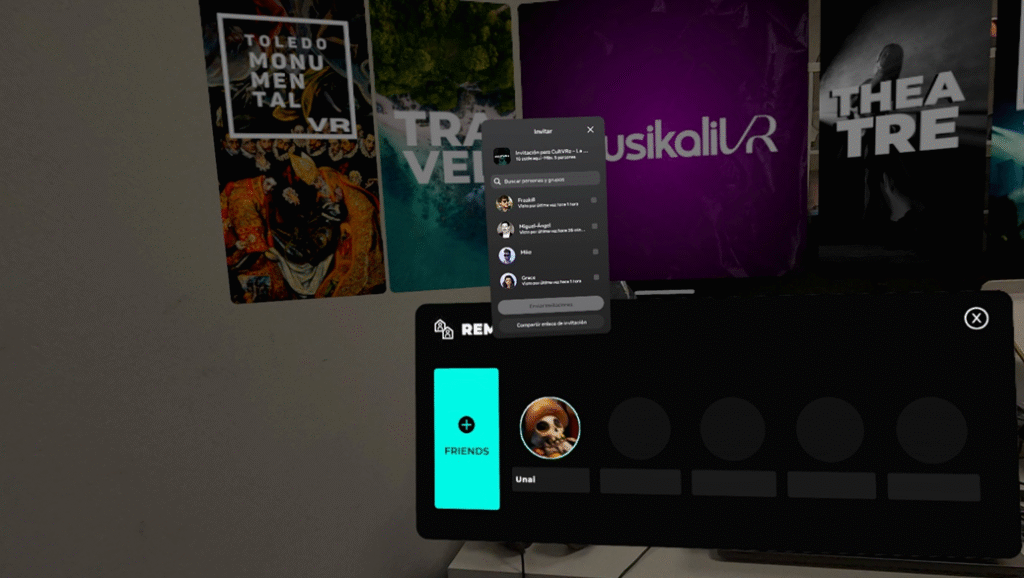
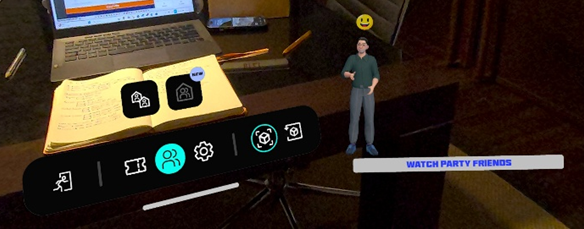
Right after entering the app, you will then select the “Friends’ button”. This button appears at the bottom center, along with the other settings buttons.
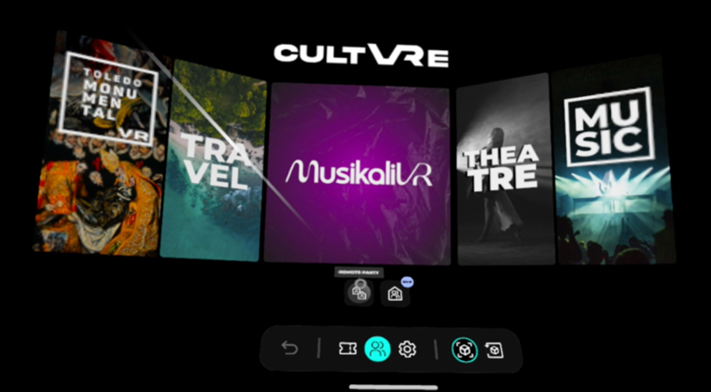
Once the “Friends” button has been selected, choose the “Remote Party” option to start a Watch Party.
By performing this action, the shared viewing session will begin, allowing you to add friends who have been previously added to your contact list.
To invite other users, click the blue “+Friends” button. This action will send an access invitation to the selected users, enabling them to join the Watch Party.
The following images illustrate the process step by step.
3. Joining a Watch Party at CultVRe
To join a Watch Party started by another user, you must first have that user added to your friends list.
Once the host sends an invitation, it will appear as a notification within the “People” tab (the notification will look like the one shown in the attached image).
Before accepting the invitation, make sure to open the CultVRe app. If you accept the invitation without having the CultVRe app open, it will only launch the app without automatically joining the Watch Party.
After opening the CultVRe app, leave it running in the background and return to the “People” tab to accept the invitation sent by the host.
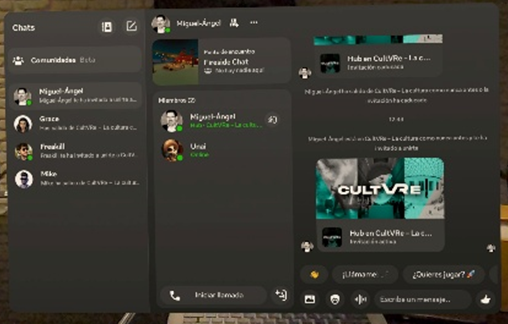
Once this step is completed, you will have successfully joined the Watch Party.
It is important to note that participants who join a Watch Party cannot select the content to watch, only the host who initiated the session has control over the playback selection.
4. Reaction and Interaction during a Watch Party
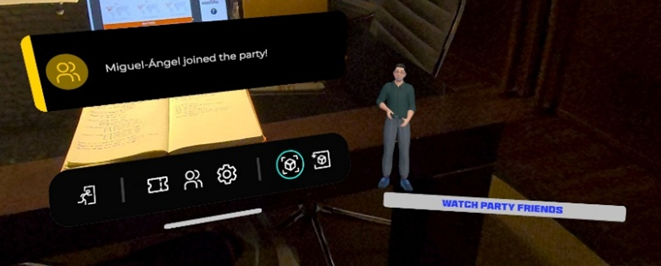
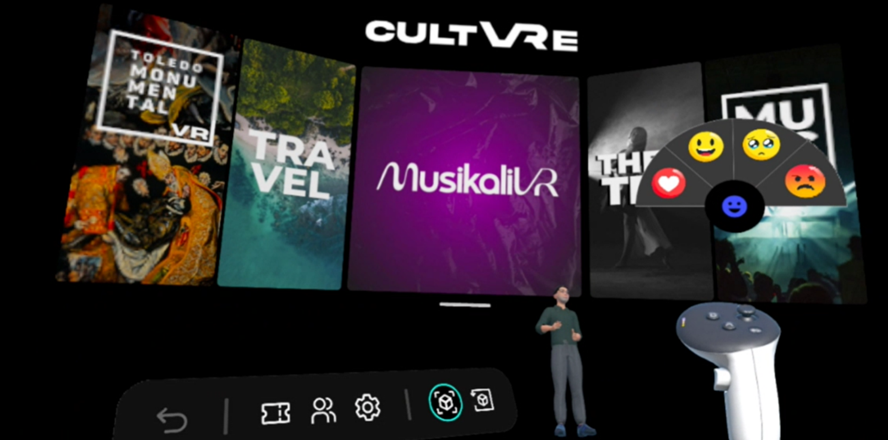
To react live to the content, you must be inside the Watch Party. If you are not in it or are the only user present, the reactions and interactions feature will not be available.
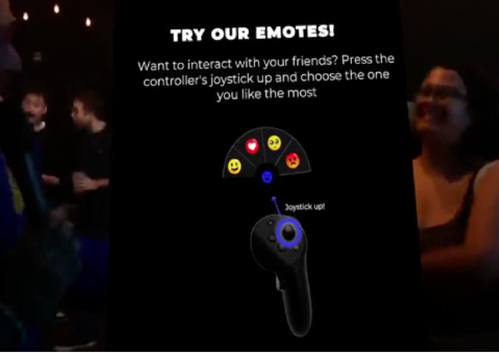
When the Watch Party is created, the following tutorial message will appear. To react with the four available emotes, point to the lower-right corner where the members of the active Watch Party are located. Once pointed, you can start the reactions using the right controller’s joystick by pushing it upward.
To be abe to speak during the Watch Party user will need to enable the Microphone in the Culture app settings. Usually this is requested when the first-time user joins or creates a Watch Party. If this does not happen, user will need to enable it manually in the cultvre app settings.
Deja una respuesta